UX/UI DESIGN

UX/UI DESIGN

UX/UI DESIGN

Mobile app

Mobile app

Mobile app

An app to never miss a bus again

An app to never miss a bus again

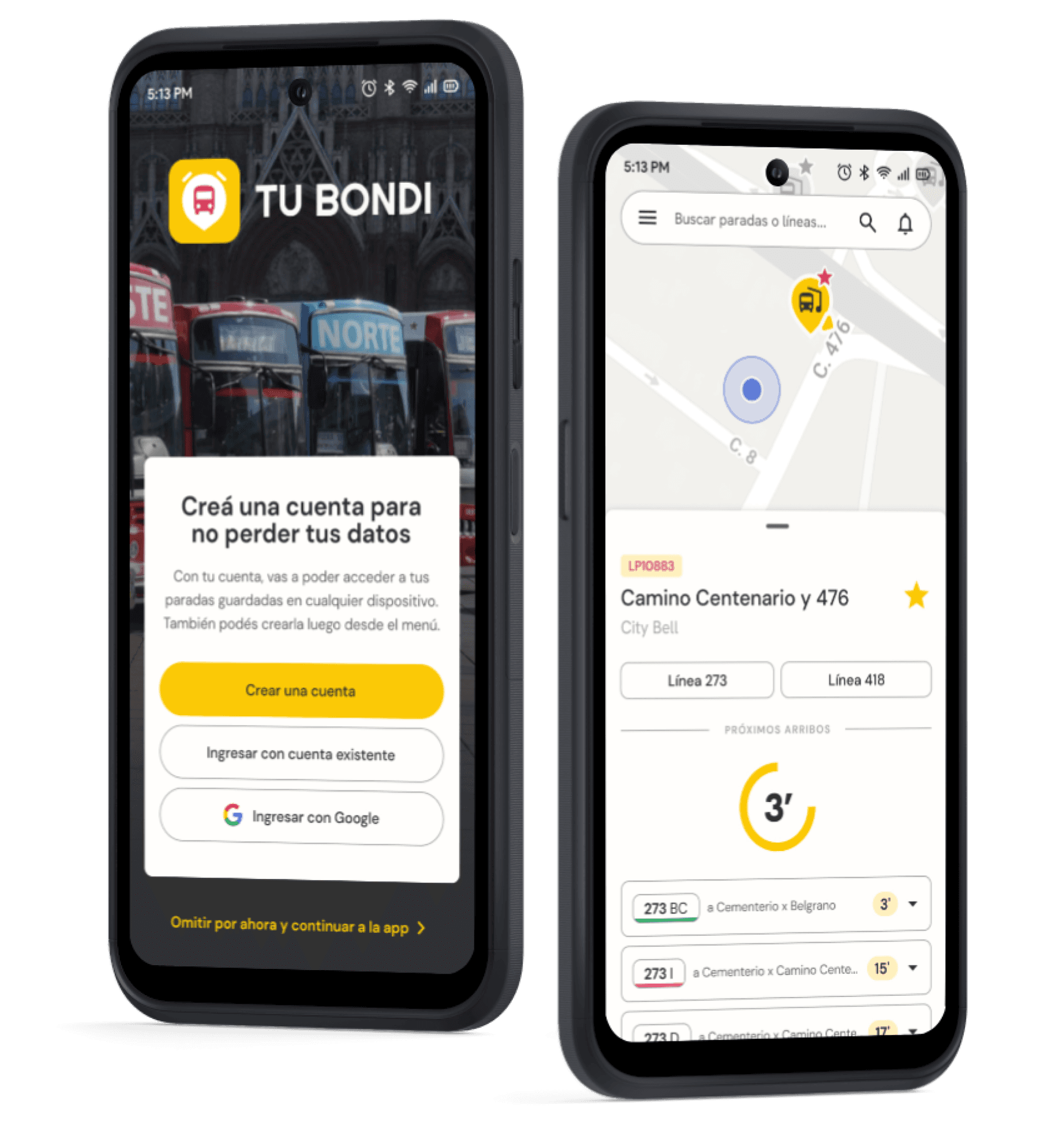
TuBondi is an app to check the schedules and routes of the buses in La Plata and set reminders to arrive on time at the bus stop.

MY ROLE
MY ROLE

UX/UI Designer

UX/UI Designer

TASKS
TASKS

User research, competitive analysis, wireframing, prototyping, usability testing

User research, competitive analysis, wireframing, prototyping, usability testing

TOOLS
TOOLS
Optimal Workshop
Optimal Workshop
Optimal Workshop
Zoom
Zoom
Zoom
Material Design
Material Design
Material Design

Project overview

This project was carried out for the UX/UI Design course taught by Coderhouse, between the months of March and June 2024, with the aim of designing a native mobile app from start to finish, consolidating the entire process into a high-fidelity prototype.

I decided to create TuBondi, an app to check real-time schedules and routes of all the buses in the city of La Plata and set reminders to always arrive on time at the bus stop.

Select one of the stops near your location, check all the schedules of the upcoming arrivals, and set a reminder for the bus you need to take. Not familiar with the city? You'll also be able to track the route on the map and choose the final stop to know when to get off.

This project was made for the UX/UI Design course offered by Coderhouse, between the months of March and June 2024, with the aim of designing a native mobile app from start to finish, consolidating the entire process into a high-fidelity prototype.

I decided to create TuBondi, an app to find real-time schedules and routes for all the buses in the city of La Plata, and set reminders to always arrive on time at the bus stop.

Select one of the stops near your location, check all the upcoming arrival times, and set a reminder for the bus you need to take. Not familiar with the city? You will also be able to track the route on the map and choose the final stop to know when to get off.

Problem

How many times has it happened to all of us that we had to wait 30 minutes at the bus stop because no bus was coming, or we saw one pass right in front of us just when we were about to arrive?

Despite there being several apps to check public transportation schedules, many times they are not accurate, or we rely on the time, get distracted, and don't make it to the stop on time.

In the city of La Plata, there is a mobile app created by Unión Platense, the company that manages all the bus lines in La Plata, which is very accurate with the schedules but is not very intuitive, difficult to use, and confusing in some cases. It does not have more features than showing the schedules and routes, yet it is the most used by the people of La Plata.

We decided to take this app as a starting point to propose our hypotheses and look for improvement opportunities. The idea was for it to be a municipal service so that it is something local and specific, and not overload the user with information.

What is the initial problem?

When taking a bus, people don't want to waste time at the bus stop because they left home late or are waiting for the right bus because they don't know the schedule. Additionally, in the case of going to unfamiliar places, they don't know which route is best, what its itinerary is, or where the nearest stop is.

What do we want to achieve?
  • Provide accurate information quickly and accessibly about schedules, stops, and routes.

  • Avoid wasting time and reducing the stress/anxiety of users.

  • Be a complement to a more efficient public transportation system.

How can we solve this?

An app that allows you to view nearby stops, check the schedules of the next buses that are about to come, and set up reminders to leave; as well as to enter a destination to see the different lines that are useful to the user and the route of each one.

Some of the existing apps that display the schedules of different buses.
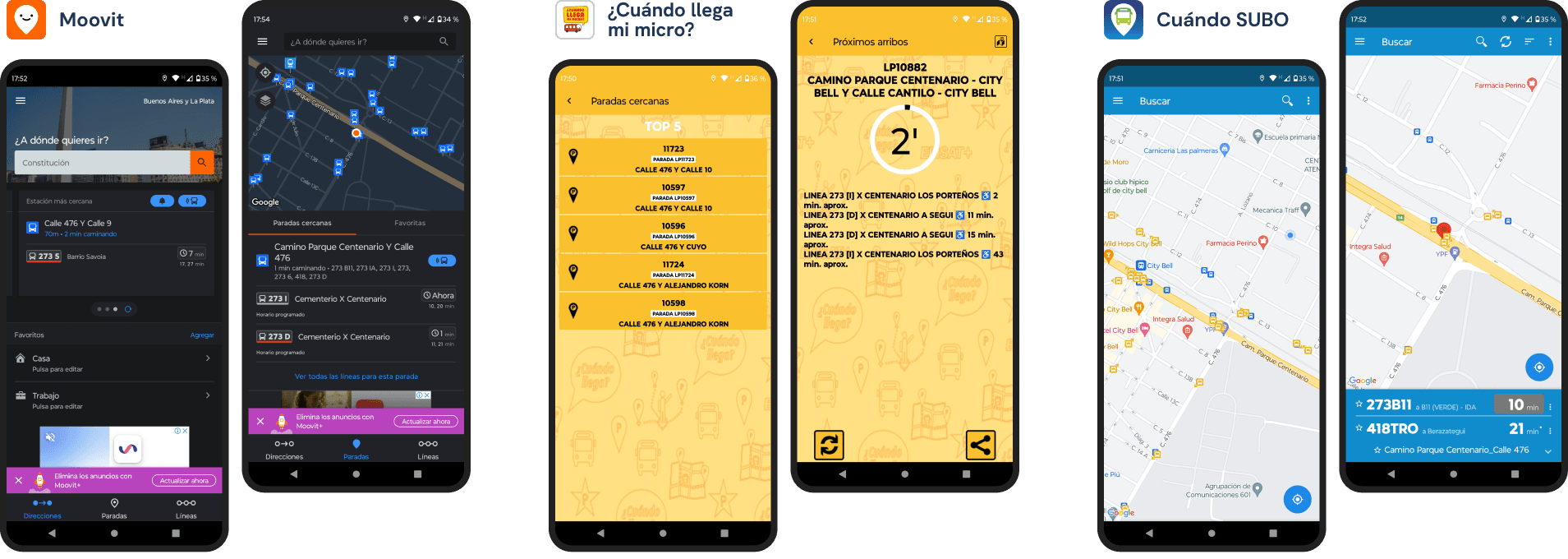
Ejemplos de apps con horarios de colectivos, como Moovit, ¿Cuándo llega mi micro? y Cuándo SUBO

Design process

To reach the solution, first we have to start by getting to know our users to validate the initial hypotheses or propose new ones, and analyze the competition to find out what was done well, what was done wrong, and everything that can be improved.

That's why we conducted a benchmarking study to analyze 3 competing apps that at least fulfilled the main function of showing public transportation schedules:

  • Moovit: optional subscription application, with global information of maps, schedules, and bus directions.

  • ¿Cuándo pasa mi micro?: platform to access real-time schedules of buses in La Plata.

  • Cuándo SUBO: app to find out the schedule of the next bus arrival, with data from 200 lines in Buenos Aires.

We can conclude that the new solution must be intuitive and easy to use when searching for a stop, precise with the displayed schedules, and without irrelevant content that confuses or overwhelms the user.

Moovit

Easy to use

Easy to use

Clear vocabulary

Clear vocabulary

Invasive ads that interrupts the task

Invasive ads that interrupts the task

Many functions and information at once

Many functions and information at once

¿Cuándo llega mi micro?

Without irrelevant information

Without irrelevant information

Accurate

Accurate

Difficult process to search for stops

Difficult process to search for stops

Elements very crowded together

Elements very crowded together

Cuándo SUBO

Efficient when searching for a stop

Efficient when searching for a stop

Lack of directions on the map

Lack of directions on the map

Unnecessary information on the map

Unnecessary information on the map

Then, interviews were conducted interviews with 4 people who lived in La Plata, frequently traveled on public transportation, and used one of the mentioned apps to get around the city. Based on the collected data, empathy maps were created and the initial hypotheses were contrasted to validate and consolidate all the information in our user persona.

One of the most repeated issues in the interviews was the problem of arriving late at the stop and missing the bus because of getting distracted at home, despite knowing in advance the schedule of the next arrival using one of the apps.

We found as insight the miscalculation of personal times and the desire to be more punctual.
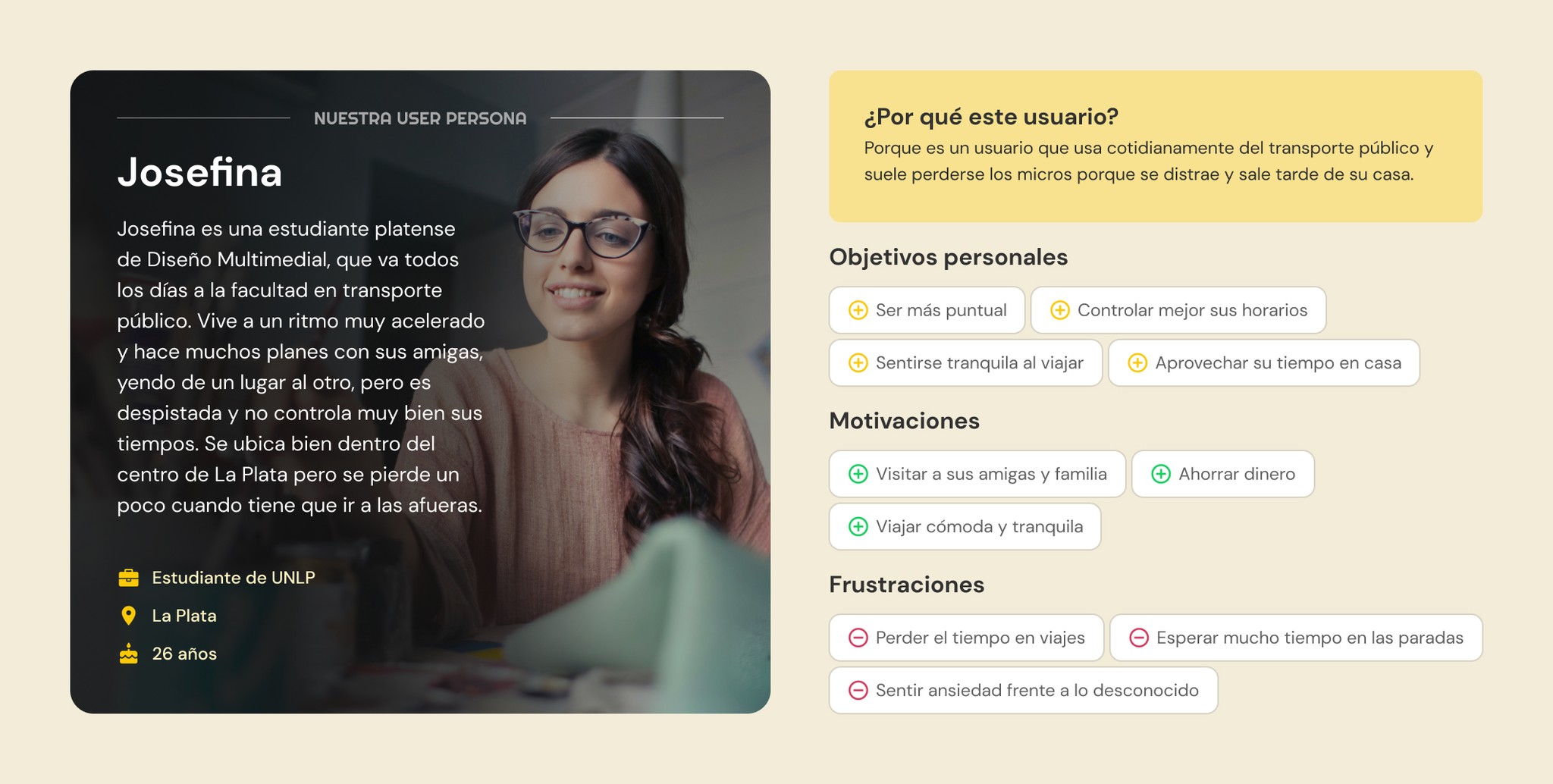
With all this new information from user interviews and competitive analysis, we can define the POV or point of view of our user with three key points: who, what, and why. In turn, we consider the first instance of a possible solution by defining the MVP, that is, the minimum viable product that includes the basic and essential features or functions to meet the primary need.

POV

Josefina is a university student from La Plata who attends the faculty every day at different times, always using public transportation.

She needs to be more punctual and arrive at the stop on time because she is a very anxious and distracted person, and she tends to leave her home too late, having to wait longer at the stop and arriving late to class.

Josefina is a university student from La Plata who attends the faculty every day at different times, always using public transportation.

She needs to be more punctual and arrive on time at the stop because she is a very anxious and distracted person, and she usually leaves her house too late, having to wait longer at the stop and arriving late to class.

MVP
  • Map with nearby stops

  • Schedules of upcoming arrivals

  • Line and stop finder

  • Notification system for getting on and off the bus

  • List of favorite or frequent stops

  • Routes of all La Plata buses

  • Map with nearby stops

  • Upcoming arrival times

  • Lines and stops search

  • Notification system to get on and off the bus

  • List of favorite or frequent stops

  • Routes of all La Plata buses

After defining the problem and possible solution, we move on to work on the content with the information architecture, for which an card sorting study was conducted based on an initial site map, the results of which helped to understand how users would organize that content and make the necessary modifications.

Similarity matrix and dendrogram with the results of users' categorizations.

Final site map, modified after the results of the card sorting.
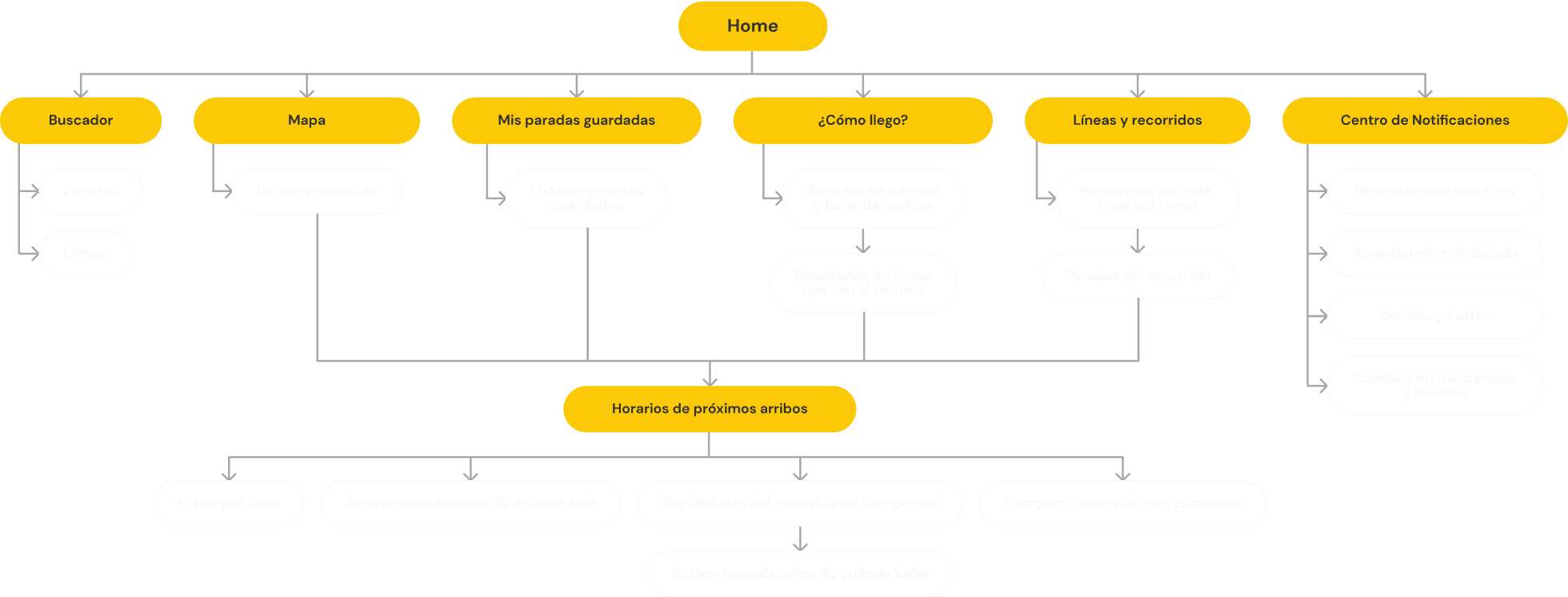
Now we can start thinking about the different interactions and branches that may occur on this site map when the user reappears and navigates through the MVP. For this, we developed a userflow with the different processes, actions, and decisions that the user can make when performing the main task from start to finish.

See schedules and set reminders

The user enters the app for the first time to search for a stop on the map, check the schedule of the bus they frequently use to go to college, and set up reminders to leave home.

Userflow
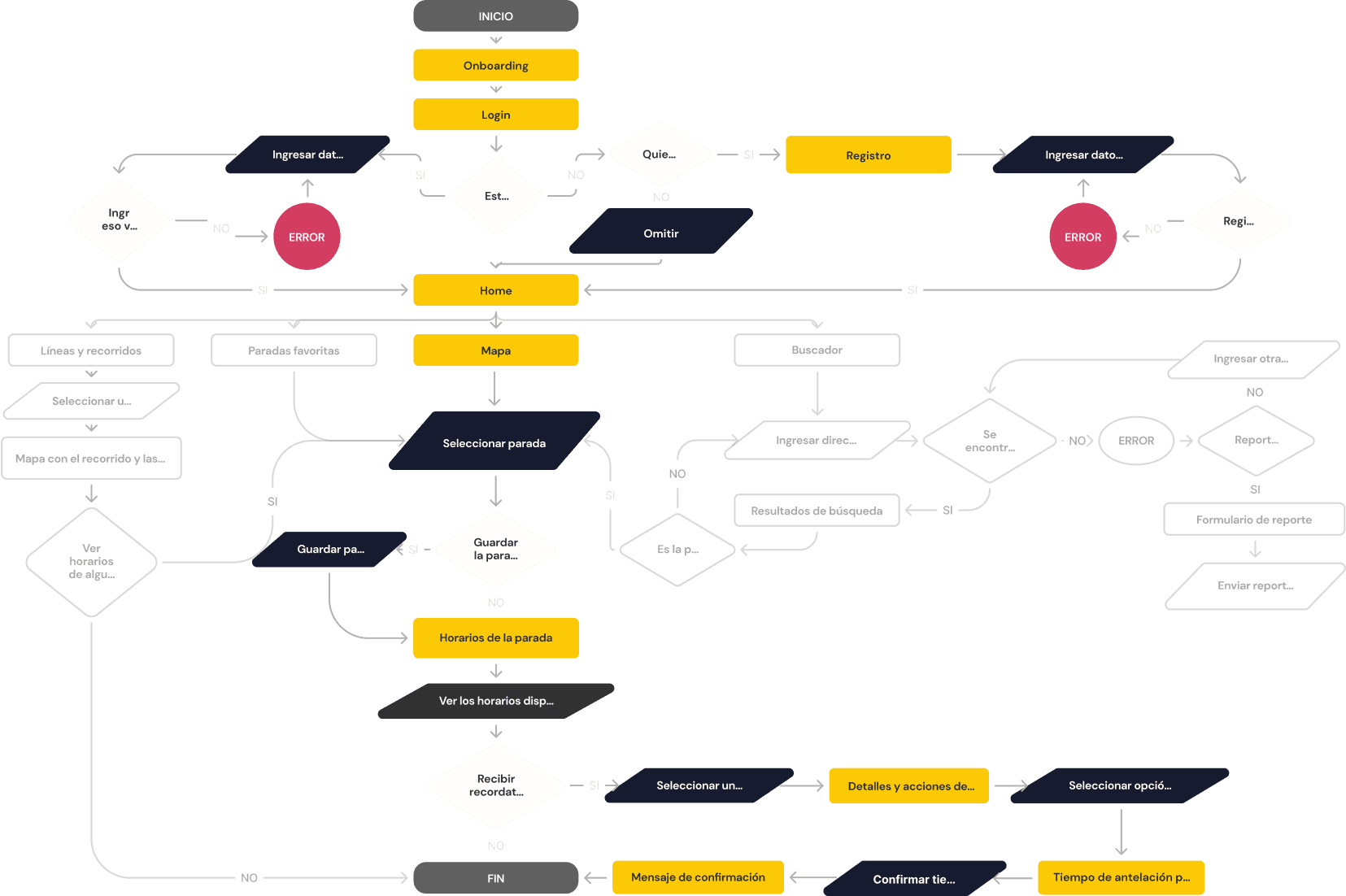
With the MVP userflow defined, we began to shape it by seeking inspiration and examples of navigation patterns in different apps. We started from the initial sketches on paper of the home and some main screens, to developing low and medium-fidelity wireframes to define the structure of the different screens.

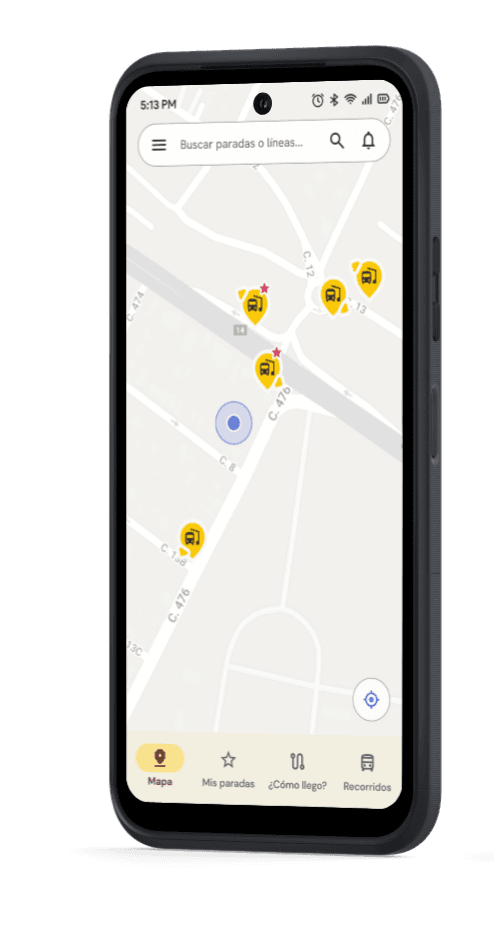
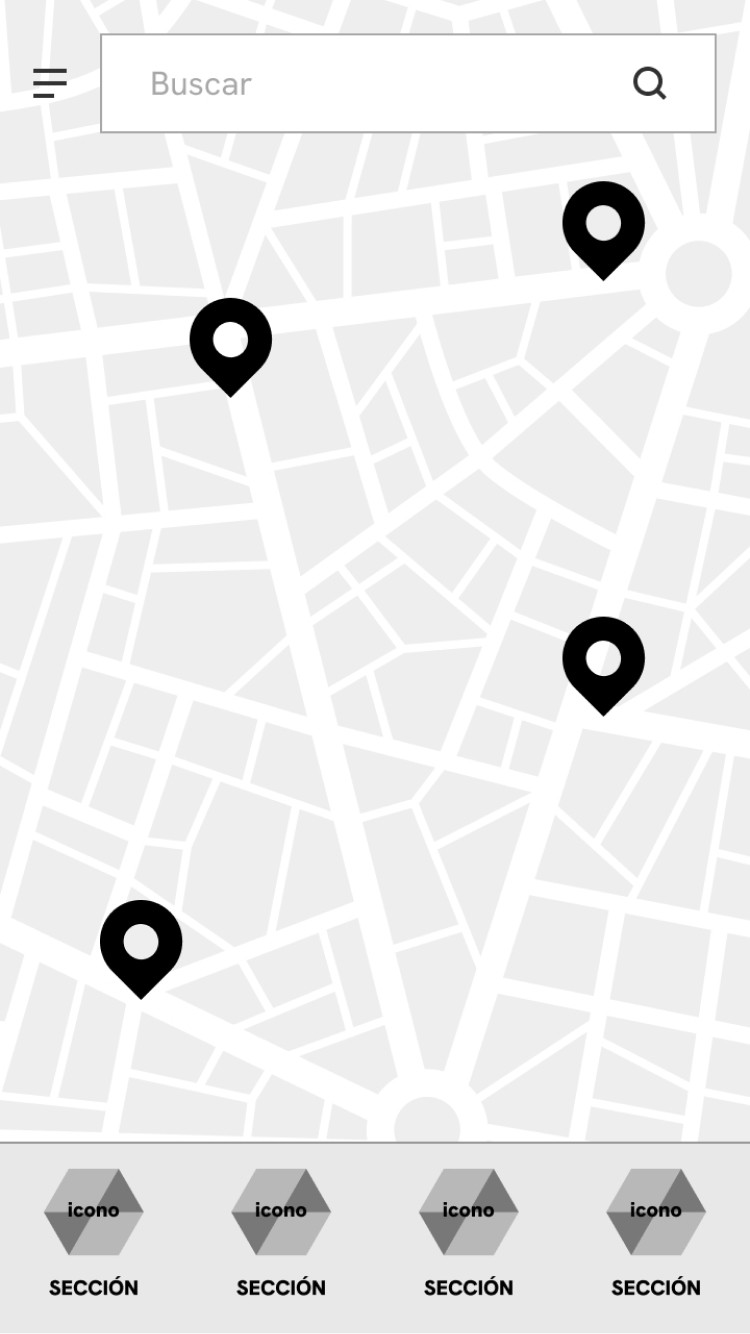
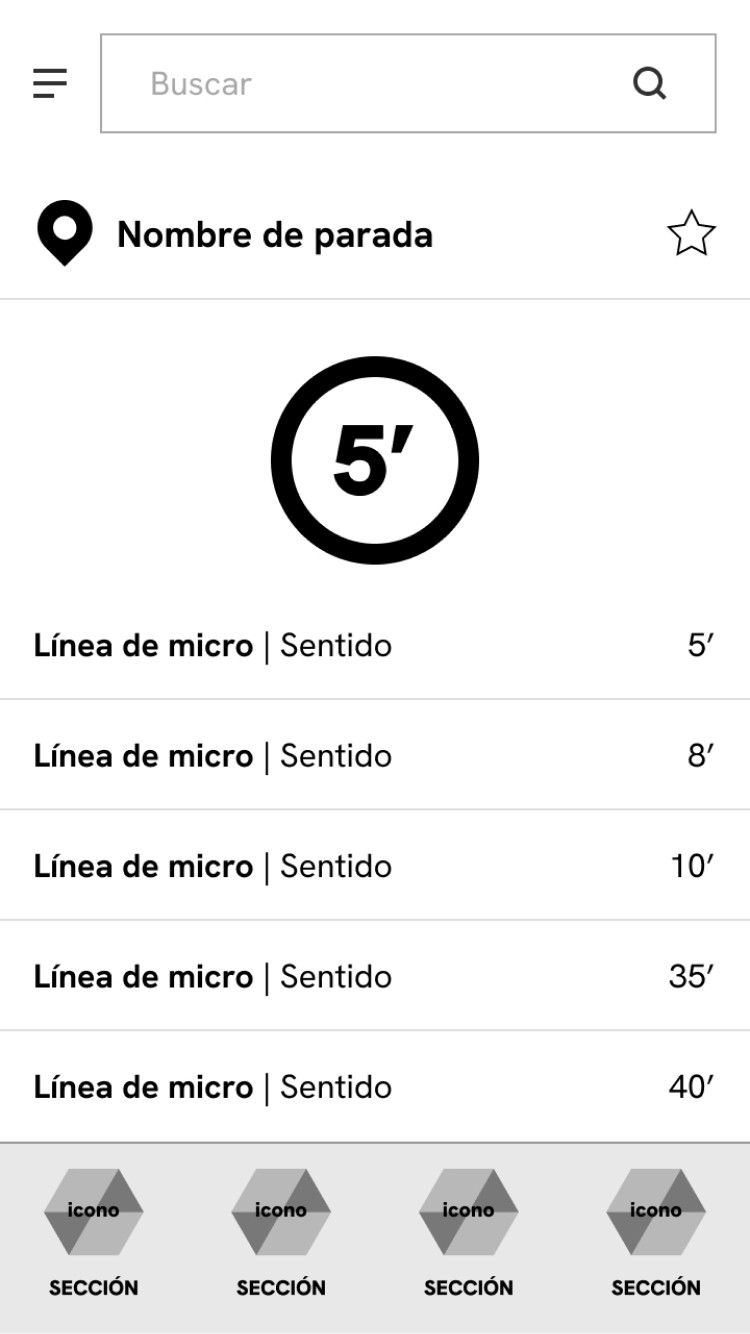
The idea was to use the map with the user's location and nearby stops as the app's home screen, and to maintain the bottom navigation bar with accesses to the 4 main functions and the top menu with the search bar and any additional function hidden in the hamburger menu.

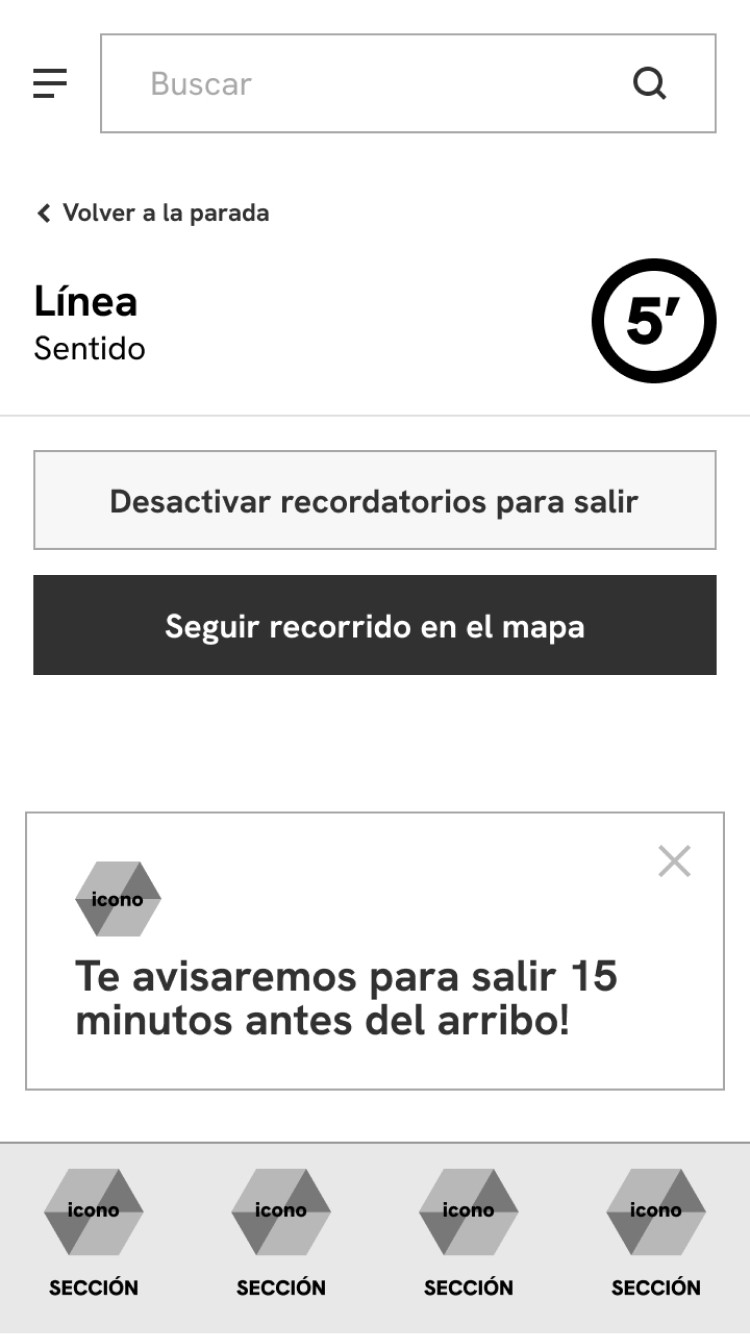
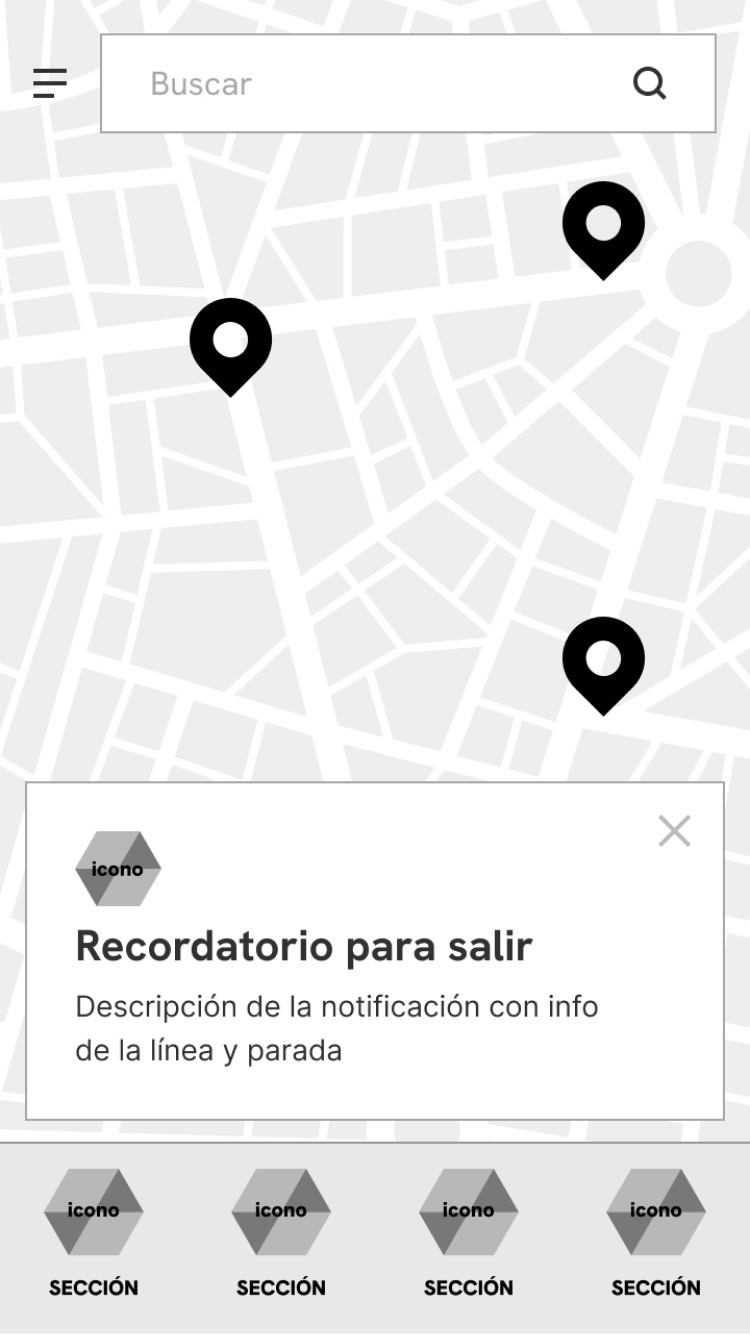
Low-fidelity wireframes, based on the main task of the MVP (selecting a stop on the map, viewing the schedules, and activating the reminder to leave for the stop).
    1. Home

    Mostrar el mapa simplemente con las paradas cercanas para no abrumar al usuario con información irrelevante.

    1. Selected Stop

    Tras seleccionar una parada, el usuario puede guardarla en favoritas mediante el icono y seleccionar el horario de un micro para ver más detalles.

    1. Horario seleccionado

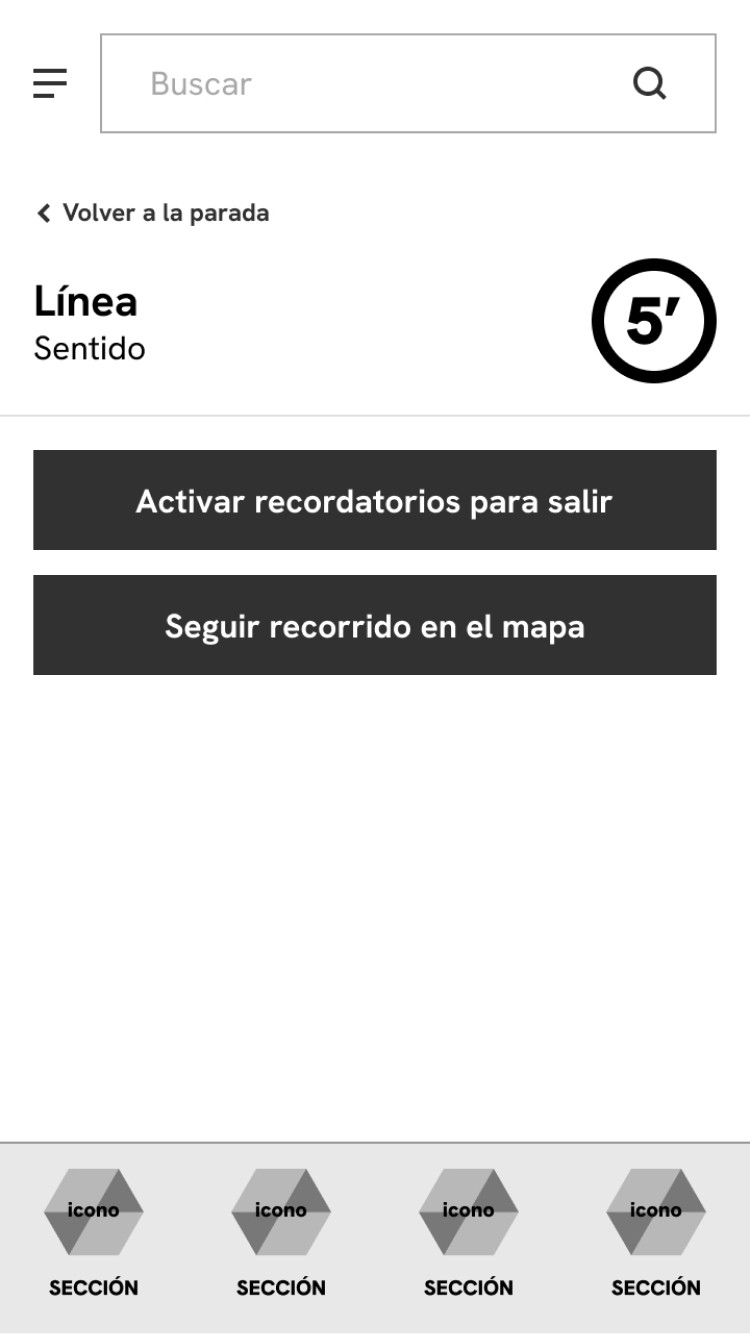
    Una vez seleccionado el micro, aparecen las opciones para activar el recordatorio y/o seguir el recorrido del micro en el mapa.

    1. Enable reminder

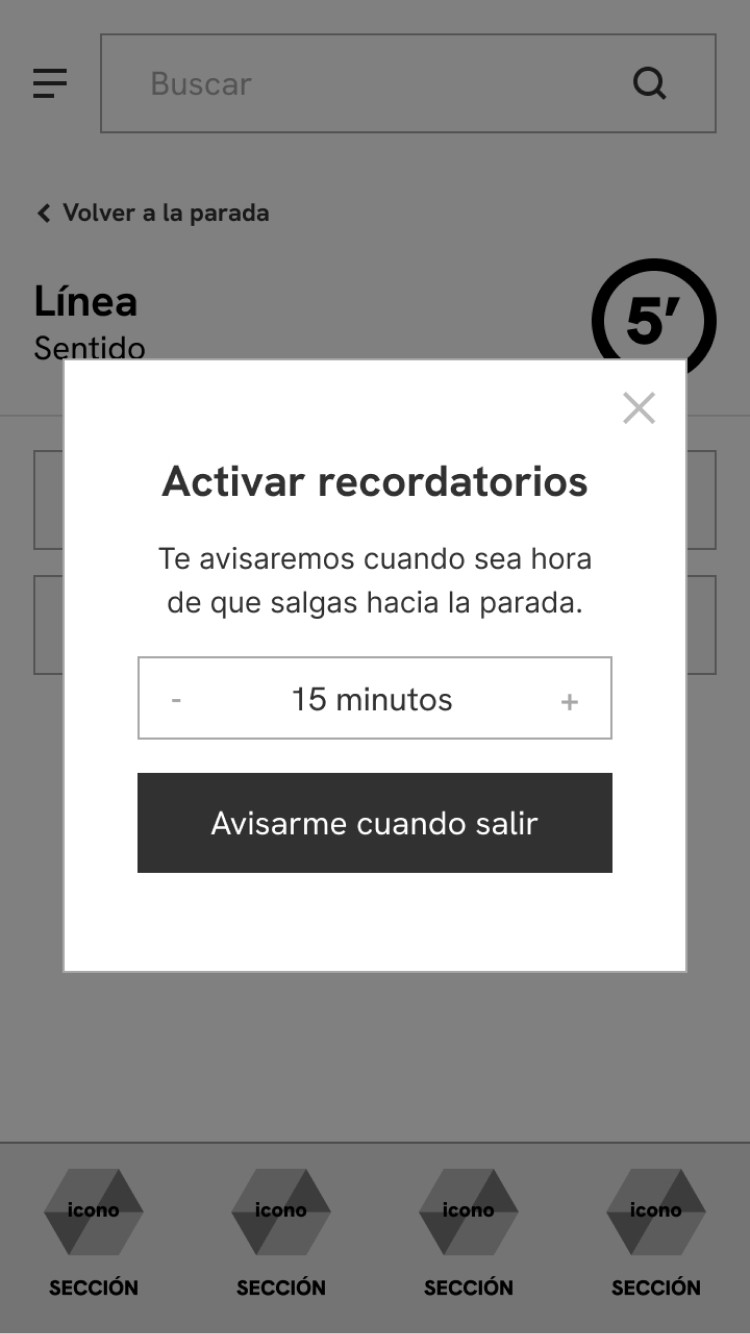
    Al seleccionar el primer botón, se abre un pop-up para elegir el tiempo de antelación para el recordatorio antes del arribo.

    1. Confirmación

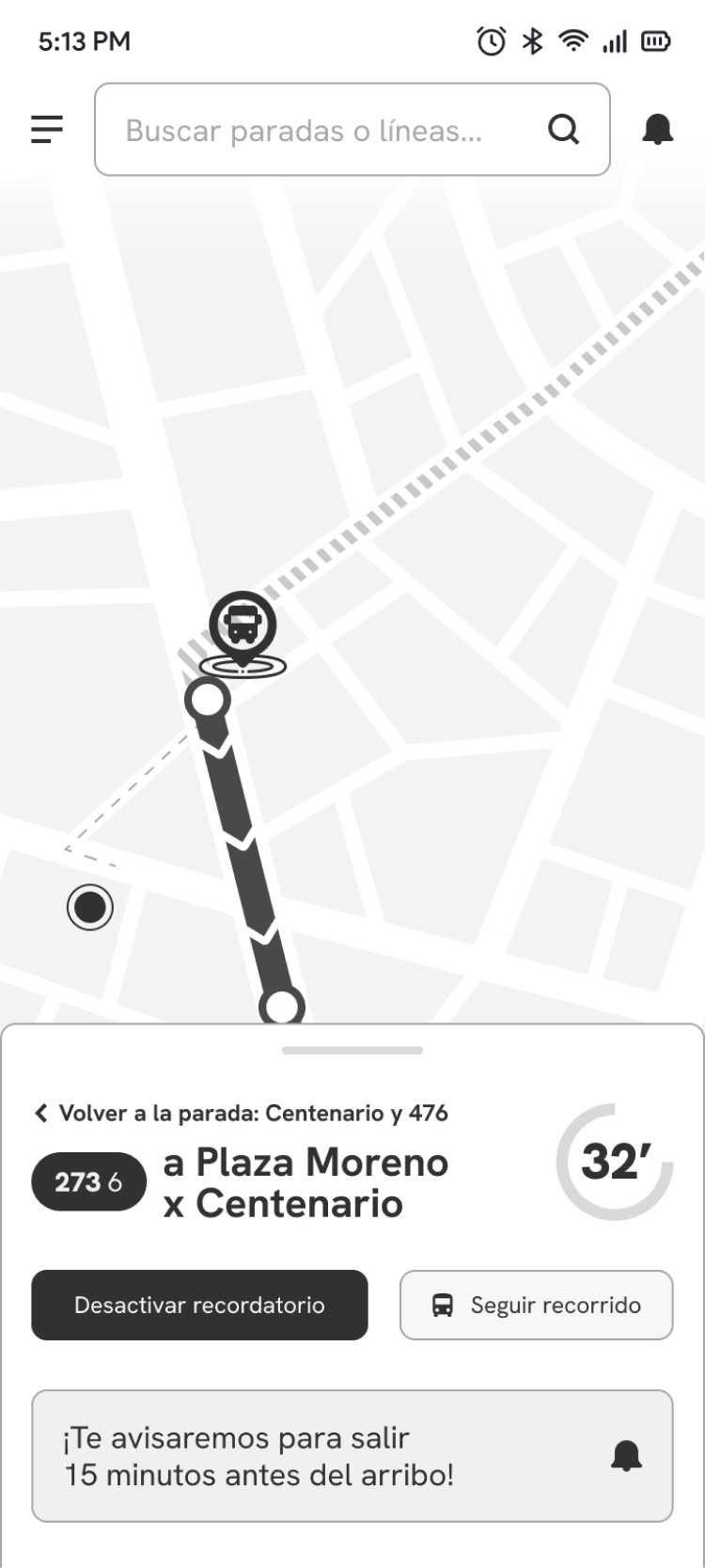
    Tras elegir el tiempo, el botón cambia para dar la opción de desactivar los recordatorios y se muestra un mensaje de confirmación.

    1. Reminder notification

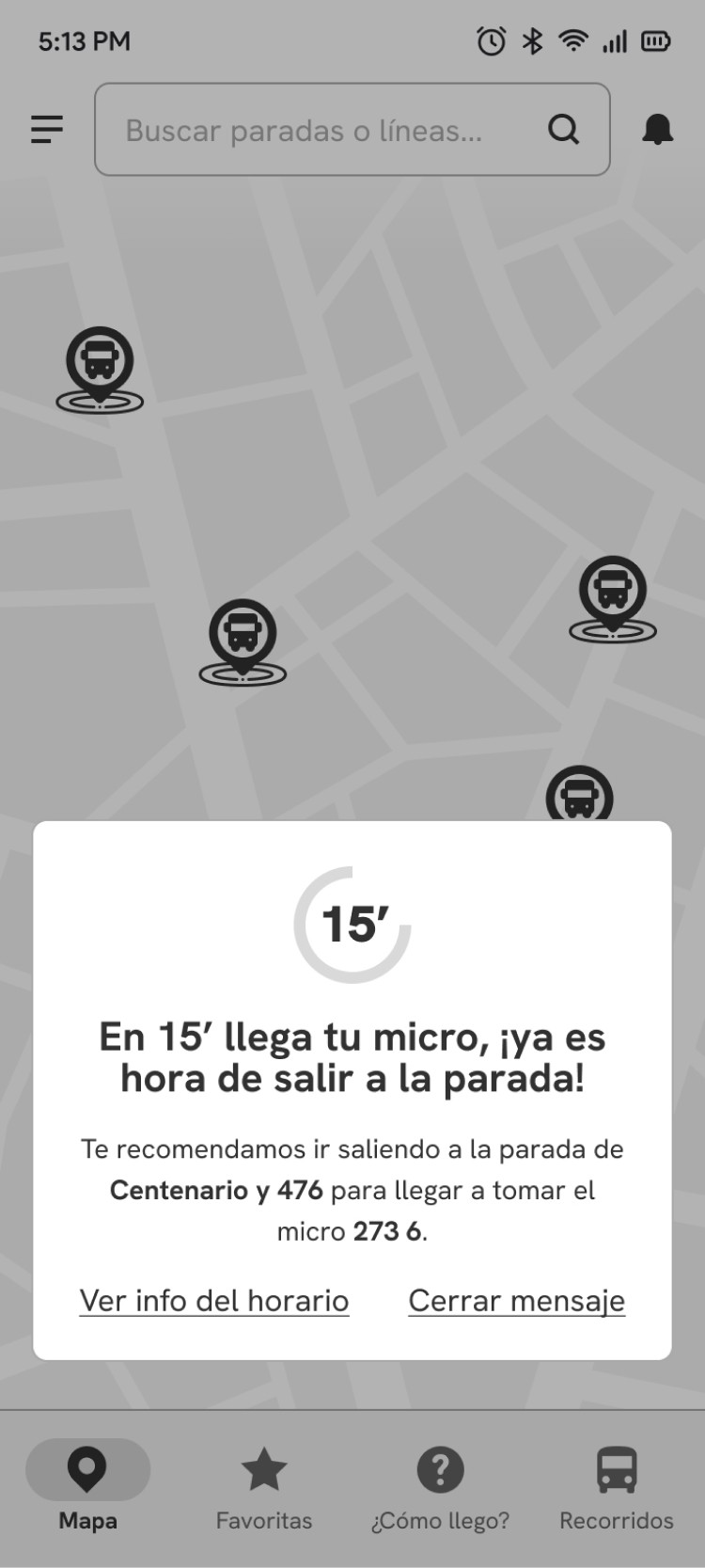
    Si el usuario sigue en la app, se muestra un mensaje con el recordatorio. Si está fuera de la app, el mensaje aparecerá en la barra de notificaciones de Android.

    1. Home

    Mostrar el mapa simplemente con las paradas cercanas para no abrumar al usuario con información irrelevante.

    1. Selected Stop

    Tras seleccionar una parada, el usuario puede guardarla en favoritas mediante el icono y seleccionar el horario de un micro para ver más detalles.

    1. Horario seleccionado

    Una vez seleccionado el micro, aparecen las opciones para activar el recordatorio y/o seguir el recorrido del micro en el mapa.

    1. Enable reminder

    Al seleccionar el primer botón, se abre un pop-up para elegir el tiempo de antelación para el recordatorio antes del arribo.

    1. Confirmación

    Tras elegir el tiempo, el botón cambia para dar la opción de desactivar los recordatorios y se muestra un mensaje de confirmación.

    1. Reminder notification

    Si el usuario sigue en la app, se muestra un mensaje con el recordatorio. Si está fuera de la app, el mensaje aparecerá en la barra de notificaciones de Android.

    1. Home

    Mostrar el mapa simplemente con las paradas cercanas para no abrumar al usuario con información irrelevante.

    1. Selected Stop

    Tras seleccionar una parada, el usuario puede guardarla en favoritas mediante el icono y seleccionar el horario de un micro para ver más detalles.

    1. Horario seleccionado

    Una vez seleccionado el micro, aparecen las opciones para activar el recordatorio y/o seguir el recorrido del micro en el mapa.

    1. Enable reminder

    Al seleccionar el primer botón, se abre un pop-up para elegir el tiempo de antelación para el recordatorio antes del arribo.

    1. Confirmación

    Tras elegir el tiempo, el botón cambia para dar la opción de desactivar los recordatorios y se muestra un mensaje de confirmación.

    1. Reminder notification

    Si el usuario sigue en la app, se muestra un mensaje con el recordatorio. Si está fuera de la app, el mensaje aparecerá en la barra de notificaciones de Android.

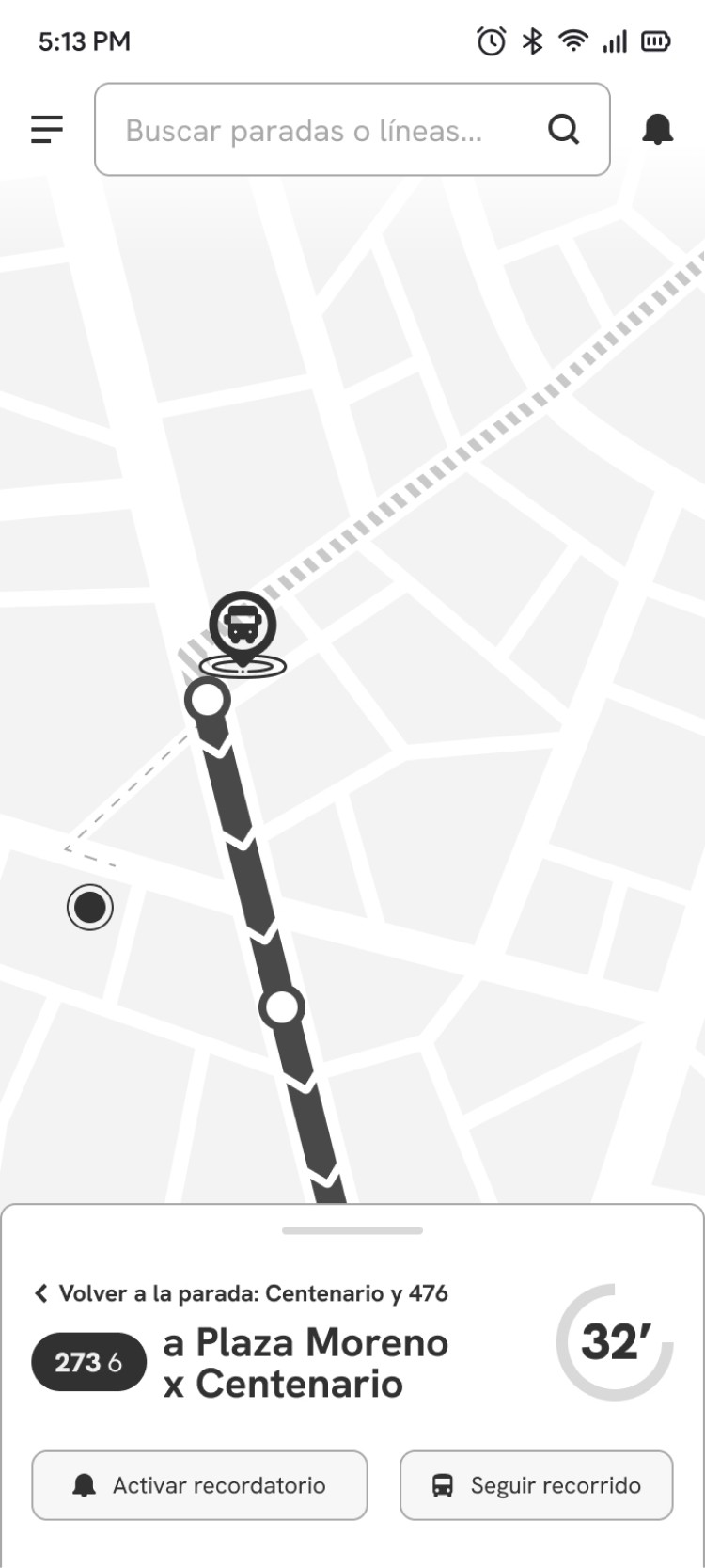
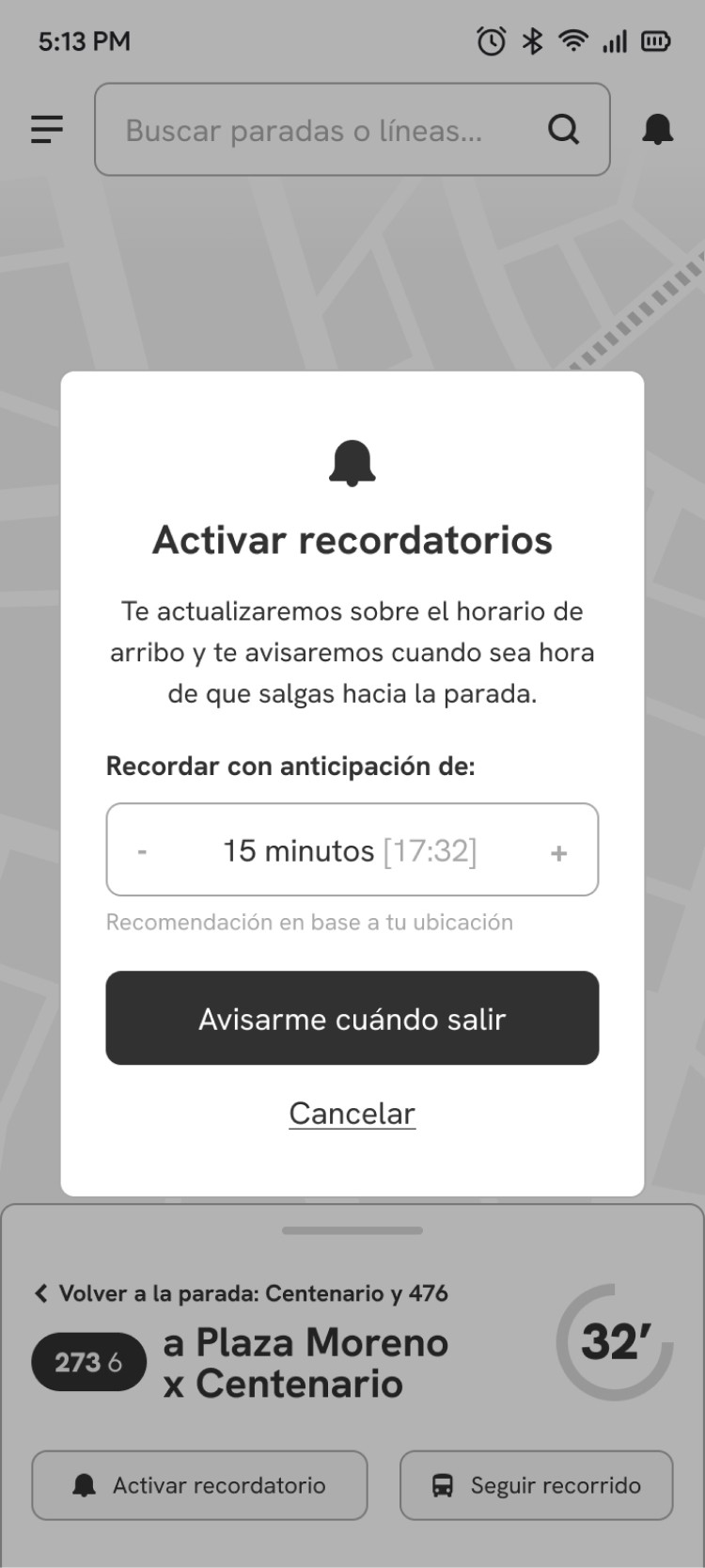
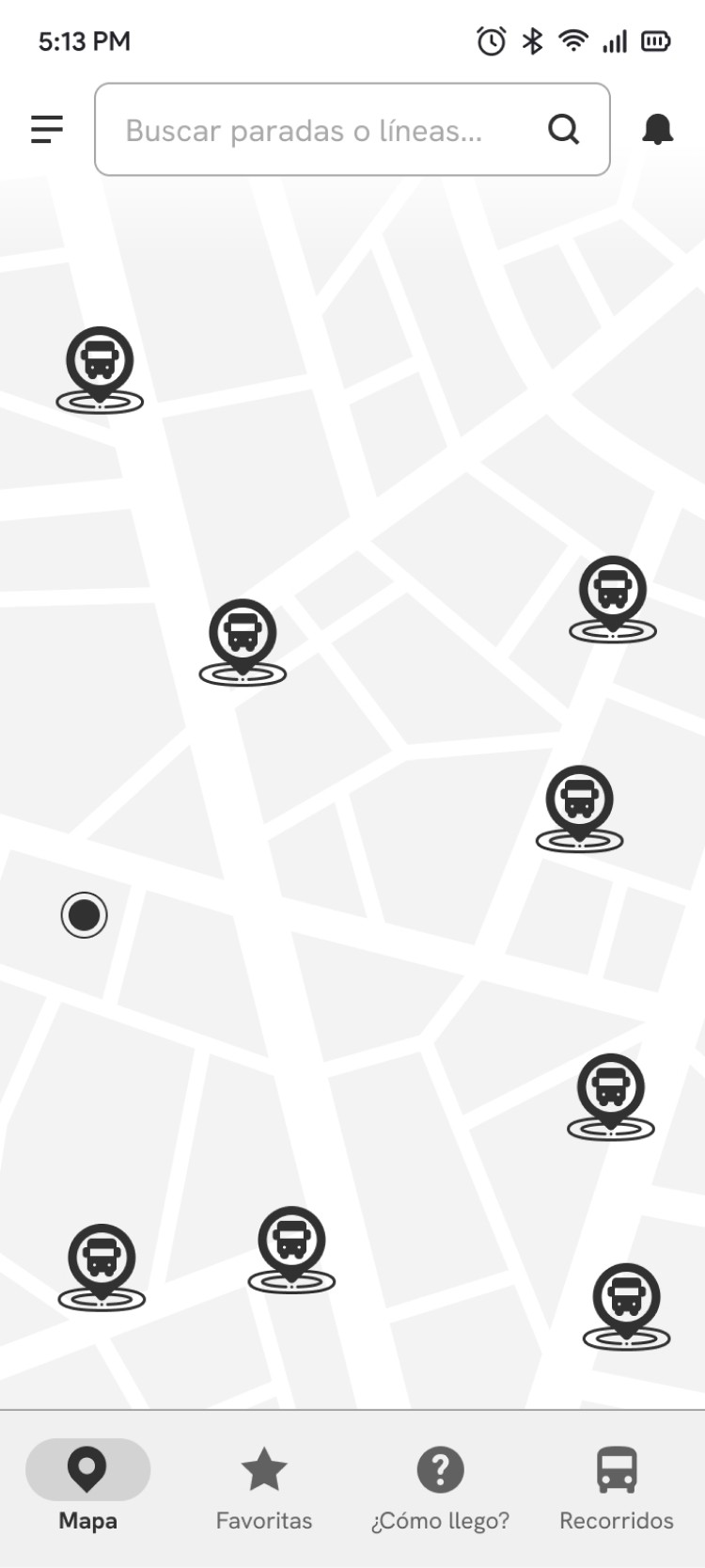
After the initial low-fidelity wireframes, we took atomic design and the guidelines of Android's Material Design 3 as references to start creating components and increasing the fidelity of the wireframes, incorporating design patterns and developing more secondary screens, such as the favorite stops page or the notification center.

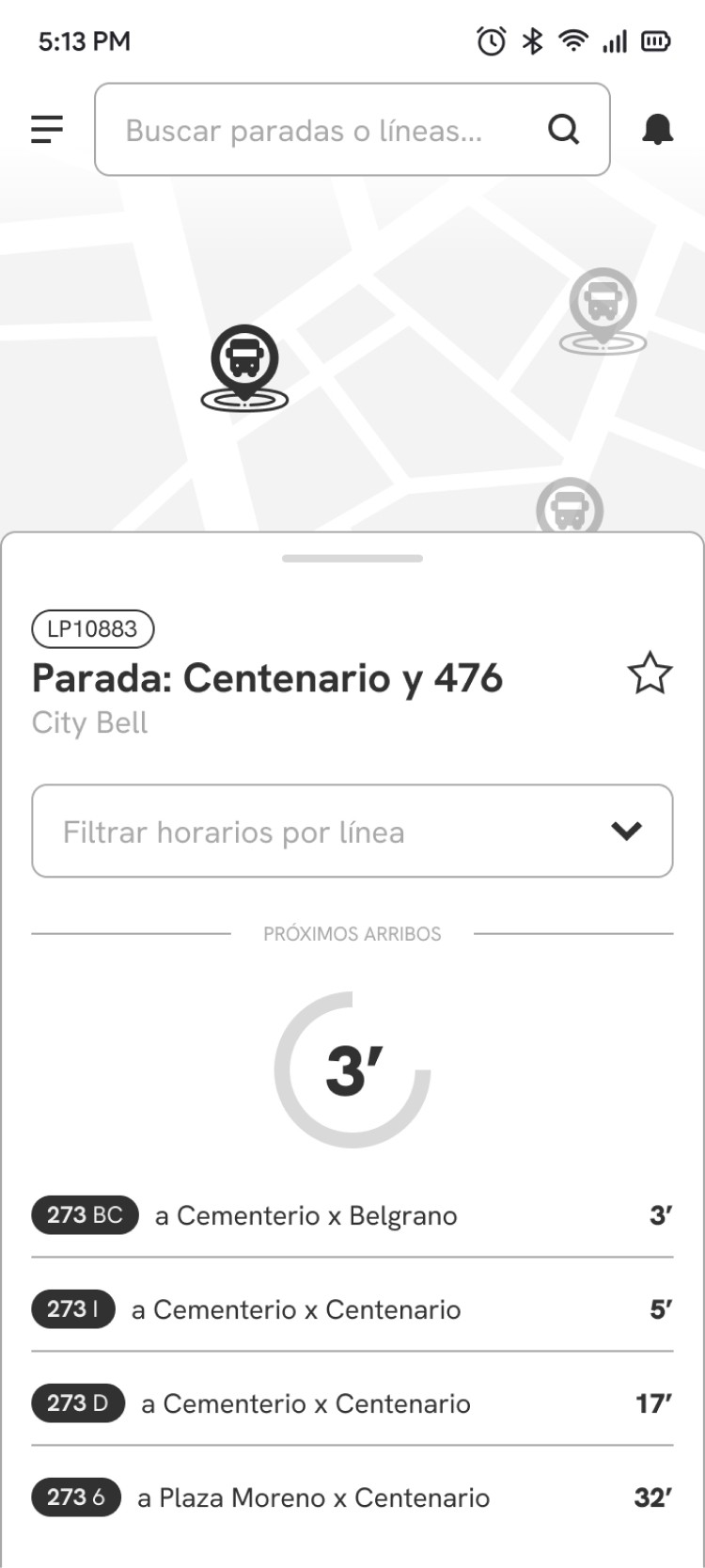
Wireframes in medium, defining some design patterns based on Material Design and adjusting details.
    1. Home

    Map with nearby stops, navigation bar with the 4 main functions, and a persistent search bar, along with the hamburger menu and notification icon.

    1. Selected Stop

    Lower drawer with stop and schedule information, in case the user wants to quickly return to the map to access another stop.

    1. Selected schedule

    Same drawer format to display a preview of the selected route and the direction of the microphone, with the schedule and the two available actions.

    1. Enable reminder

    Pop-up to attract the user's attention to make a conscious decision regarding the reminder lead time.

    1. Confirmation

    Confirmation message to provide feedback to the user about their decision and change the button action to deactivate the reminder.

    1. Reminder notification

    Notification with pop-up and darkening of the background to focus the user's attention on the content of the message.

    1. Home

    Map with nearby stops, navigation bar with the 4 main functions, and a persistent search bar, along with the hamburger menu and notification icon.

    1. Selected Stop

    Lower drawer with stop and schedule information, in case the user wants to quickly return to the map to access another stop.

    1. Selected schedule

    Same drawer format to display a preview of the selected route and the direction of the microphone, with the schedule and the two available actions.

    1. Enable reminder

    Pop-up to attract the user's attention to make a conscious decision regarding the reminder lead time.

    1. Confirmation

    Confirmation message to provide feedback to the user about their decision and change the button action to deactivate the reminder.

    1. Reminder notification

    Notification with pop-up and darkening of the background to focus the user's attention on the content of the message.

    1. Home

    Map with nearby stops, navigation bar with the 4 main functions, and a persistent search bar, along with the hamburger menu and notification icon.

    1. Selected Stop

    Lower drawer with stop and schedule information, in case the user wants to quickly return to the map to access another stop.

    1. Selected schedule

    Same drawer format to display a preview of the selected route and the direction of the microphone, with the schedule and the two available actions.

    1. Enable reminder

    Pop-up to attract the user's attention to make a conscious decision regarding the reminder lead time.

    1. Confirmation

    Confirmation message to provide feedback to the user about their decision and change the button action to deactivate the reminder.

    1. Reminder notification

    Notification with pop-up and darkening of the background to focus the user's attention on the content of the message.

Solution & results

Once the structures of the main pages with wireframes were defined, interactions and animations were added to create a functional prototype to test it with users, always seeking to comply with the heuristics.

Usability tests were conducted with 5 users to detect what worked and what didn't, and thus find points for improvement. After the tests were completed, a satisfaction survey was sent for users to rate the experience with the prototype, and then the recordings were reviewed to complete the registration forms and the efficiency and effectiveness metrics.

Evaluated tasks
  • Search for the schedule of the next bus that passes by the nearest stop to your home and set a reminder to leave on time.

  • Compare the routes of two bus lines and check which is the last stop of the first one.

What worked
  • The search for the routes of the lines was carried out smoothly.

  • 3 out of 5 users managed to set up reminders based on the schedule of an upcoming arrival.

  • 4 out of 5 users managed to choose the nearest stop on the map.

What didn't work
  • The onboarding screens were quickly skipped.

  • Users spent a long time on the login screen to process the information.

  • The snackbar was ignored when showing the reminder confirmation.

  • 2 out of 5 users had trouble finding a stop, first going to the Routes section.

Areas for improvement
  • Review the login screen to simplify it or remove it since it is optional (and allow account creation at another time). Users spent a lot of time on the login screen to process the information.

  • Simplify the onboarding with shorter texts and complementary images.

  • Add a location permission pop-up at the beginning to better understand the map and distinguish when the location is activated or not.

  • Improve visual feedback after activating a reminder (fixed message with the departure time, point on the center notifications icon, etc.).

After the tests, we return to the prototype to continue improving it, with greater graphic and functional fidelity. We start with a moodboard and consolidate the UI kit with typography, colors, animations, and more components.

We are based on the branding of the La Plata Municipality and Unión Platense, and the colors that all bus lines share, allowing each of them to be identified. As for the interface and tone of voice, Uber and similar transportation apps were taken as inspiration, for their friendly language, use of minimalist maps, and clarity of information.
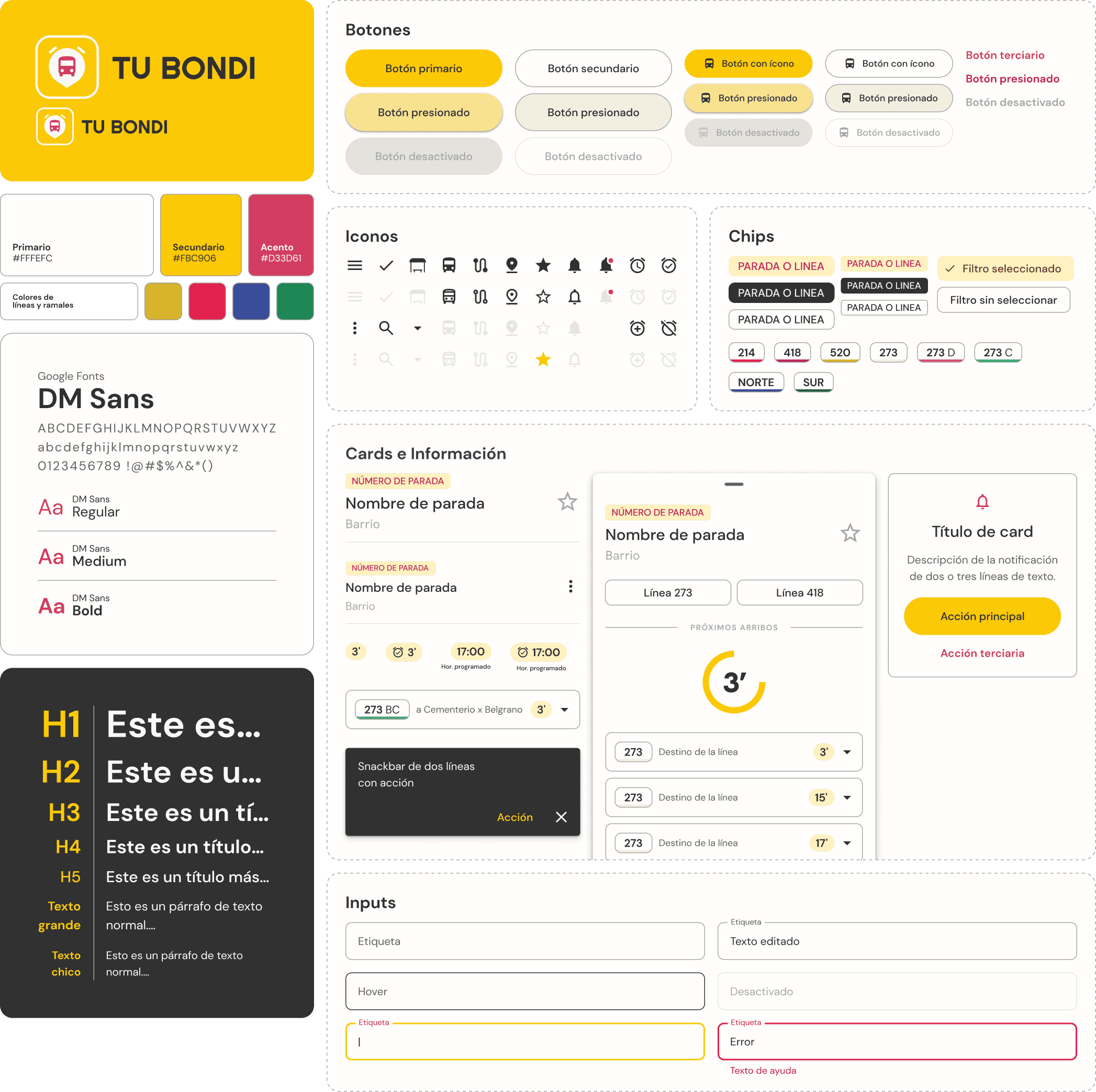
Application UI kit with color palette, text styles, and some examples of components.

Application UI kit with color palette, text styles, and some examples of components.

High-Fidelity Mockups

Once the UI kit and components were applied, new adjustments were considered to improve the experience and usability, iterating and validating our decisions. These are some of the modifications and improvements made after the results of usability tests and heuristic review:

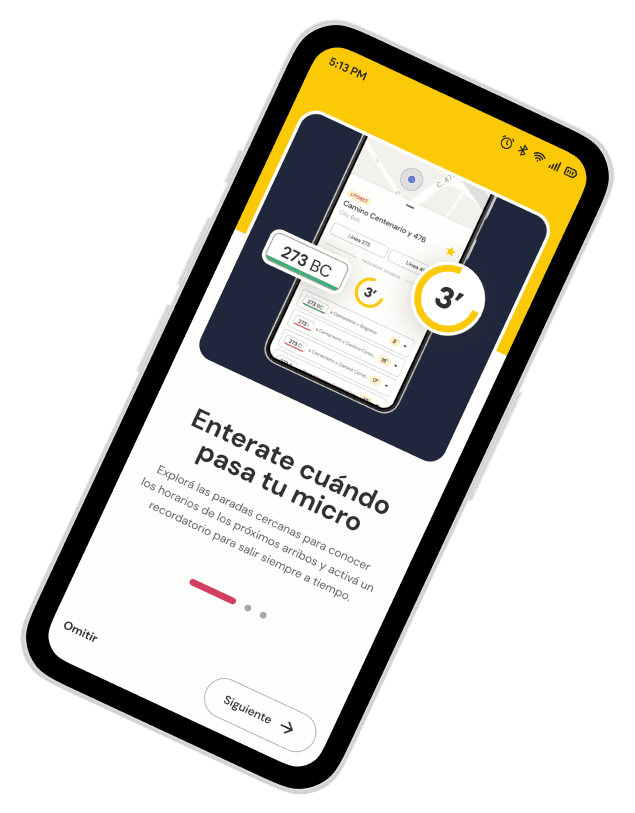
Simplification of Onboarding

The texts on the onboarding screens have been shortened to be more concise and easily scannable.
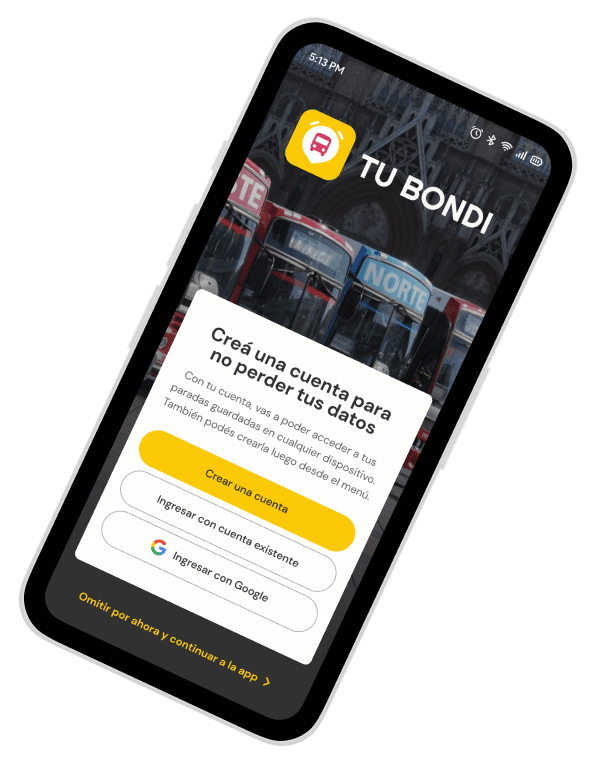
New Login/Register screen

A new dismissible screen was created, separating the login and registration process into different screens.
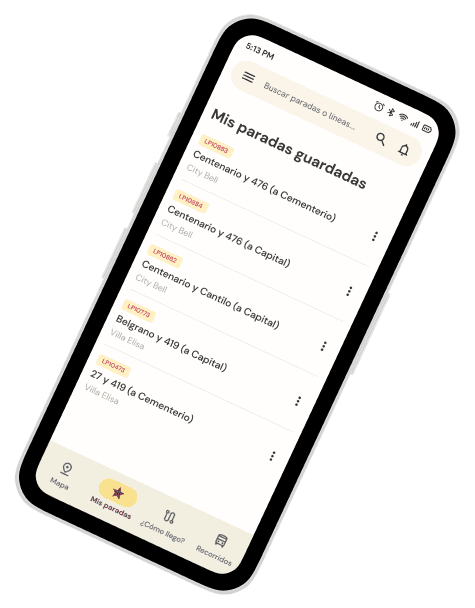
Optimization of 'My saved stops'

The name was changed to be more intuitive and descriptive both in the menu and in the title, and the actions were hidden in the three-dot menu to prevent accidental stop deletion.
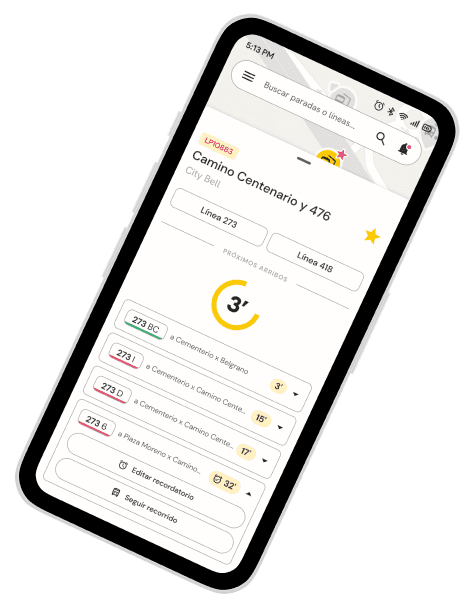
Clickable schedules and visual feedback

The schedule format was changed to boxes with dropdowns to make them look more 'clickable' and combine all actions in the same place.

In addition, elements were added for the system feedback, such as the alarm icon when activating a reminder, the snackbar, and the animation that changes the notification center icon.
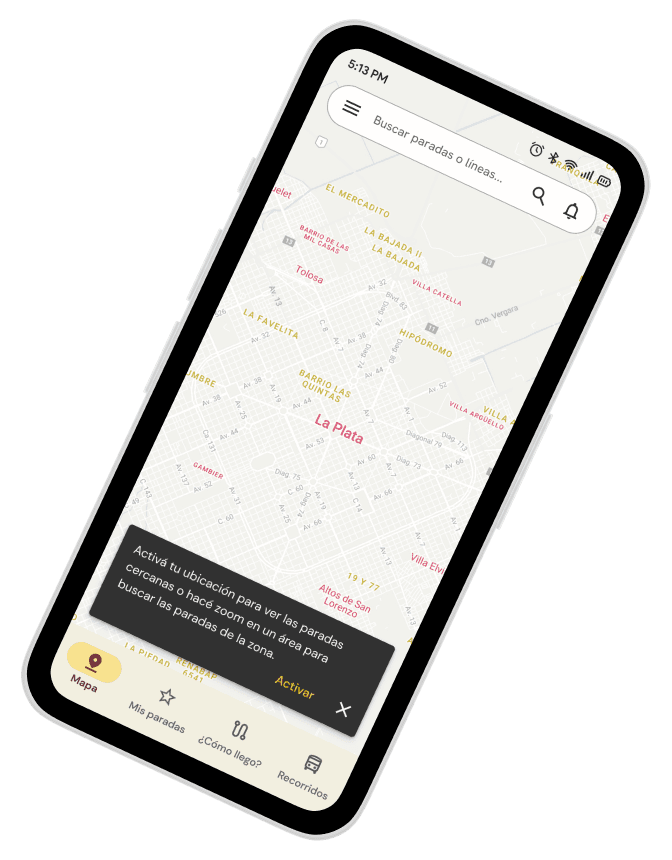
Location permission

The location permission screen and the suggestion to activate it to show the differences were added.
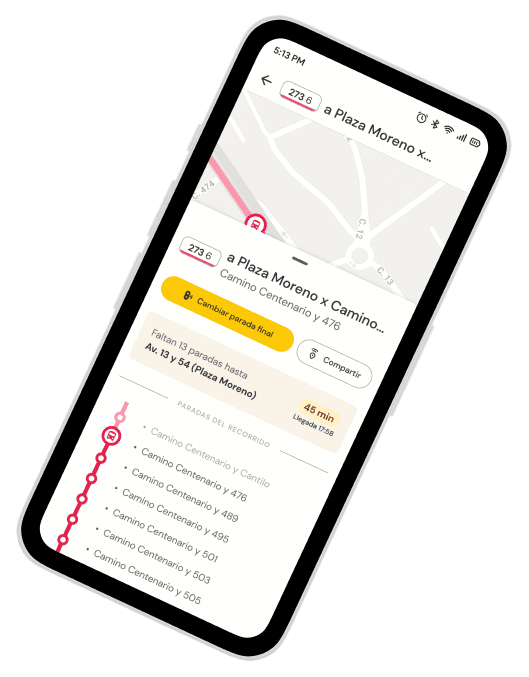
Follow route

Screens were added for the functionality of Follow route and the action to select a final stop.
Do you want to know more about the project?

You can see all the details of the process in the full report. You can also view the presentation on Behance and leave me a rating!

You can see all the details of the process in the full report. You can also view the presentation on Behance and leave me a rating!

Interested in what you saw?

Contact me!

Feel free to send me an email at manumoscoloni@gmail.com or connect with me on LinkedIn.

Website by Manuel Moscoloni. All rights reserved © Copyright 2024

Interested in what you saw?

Contact me!

Feel free to send me an email at manumoscoloni@gmail.com or connect with me on LinkedIn.

Website by Manuel Moscoloni.
All rights reserved © Copyright 2024

Interested in what you saw?

Contact me!

Feel free to send me an email at manumoscoloni@gmail.com or connect with me on LinkedIn.

Website by Manuel Moscoloni. All rights reserved © Copyright 2024

Create a free website with Framer, the website builder loved by startups, designers and agencies.